Hosted Fields: how to embed payment form on a website
Hosted Fields allow you to embed card input fields on your website or app, fully adapting them to the system's design. They create a seamless interface experience and eliminate the need to redirect the customer to an external payment page. This improves usability and conversion rates.
The input fields for the card number, expiration date, and CVC are represented as an iFrame. We provide the ability to fully customize their CSS and embed them on your site as a single frame.
Tutorial
Setup
<span class="u-richtext-counter">1</span> In the <span class="u-richtext-element">Settings</span> → <span class="u-richtext-element">Integrations</span> → <span class="u-richtext-element">My sites</span> enable Hosted Fields for the required integration.
<span class="u-richtext-counter" id="domains">2</span> Click <span class="u-richtext-element">Hosted Fields settings</span> and specify the domains where Hosted Fields will be used. Enter each domain or subdomain on a separate line without “https://”, for example: <span class="u-richtext-element">mysite.com</span>. To allow all subdomains, use the <span class="u-richtext-element">*</span> wildcard, for example: <span class="u-richtext-element">*.mysite.com</span>.
If needed, adjust the CSS styles for the input fields.
<span class="u-richtext-counter">3</span> On your website’s payment page, place an iFrame, assign any custom value to its <span class="u-richtext-element">id</span> parameter, and in the <span class="u-richtext-element">src</span> parameter specify the payment URL (payment_url) returned by Allpay in response to a payment creation request (see Payment request section in the API Reference). Payment URLs can also be generated using the Allpay API Tester.
<span class="u-richtext-counter">4</span> Add the following script to the payment page:
1<script src="https://allpay.to/js/allpay-hf.js"></script>
2    <script>
3    let Allpay = new AllpayPayment(
4        {
5            iframeId: 'iframe_id',
6            onSuccess: function() { alert('Payment success'); },
7            onError: function(error_n, error_msg) { alert('Payment error: ' + error_n + ' (' + error_msg + ')'); }
8        }
9    );
10    </script>
In the script, replace the following parameters with your own:
- <span class="u-richtext-element">iframeId</span> — the id value of your iFrame.
- <span class="u-richtext-element">onSuccess</span> — the handler for successful payment completion (what should happen after successful payment).
- <span class="u-richtext-element">onError</span> — the handler for payment errors. For example, you can display the payment error message on the page.
<span class="u-richtext-counter">5</span> To initiate the process, execute the function <span class="u-richtext-element">Allpay.pay()</span>, for example, by assigning it to the "Pay" button:
<button onclick="Allpay.pay();">Pay</button>Installments
If you enabled the installment option for the customer when creating the payment by passing a value in the <span class="u-richtext-element">inst</span> parameter, a field for selecting the number of payments will automatically appear in the frame.
Quick Pay Buttons
Apple Pay and Bit buttons will not be displayed in preview mode or within the iFrame if they are not activated in the <span class="u-richtext-element">Settings</span> → <span class="u-richtext-element">Modules</span>.
Additionally, these buttons are not displayed in test mode. As well as in live mode for installment or subscription payments.
Apple Pay button
For the Apple Pay button to work correctly, complete the following two steps:
<span class="u-richtext-counter">1</span>Add the <span class="u-richtext-element">allow="payment *"</span> attribute to the <span class="u-richtext-element">iframe</span> tag. Example:
<iframe id="myPaymentIframe" allow="payment *" src="..." ><span class="u-richtext-counter">2</span>Upload the Apple Pay certificate to your domain’s server. The certificate and installation instructions are available in the Hosted Fields settings in your Allpay account.
<span id=google-pay>Google Pay button</span>
For the Google Pay button to work on your domain, the domain must be verified by Google, after which your Google Merchant ID must be added to the payment system.
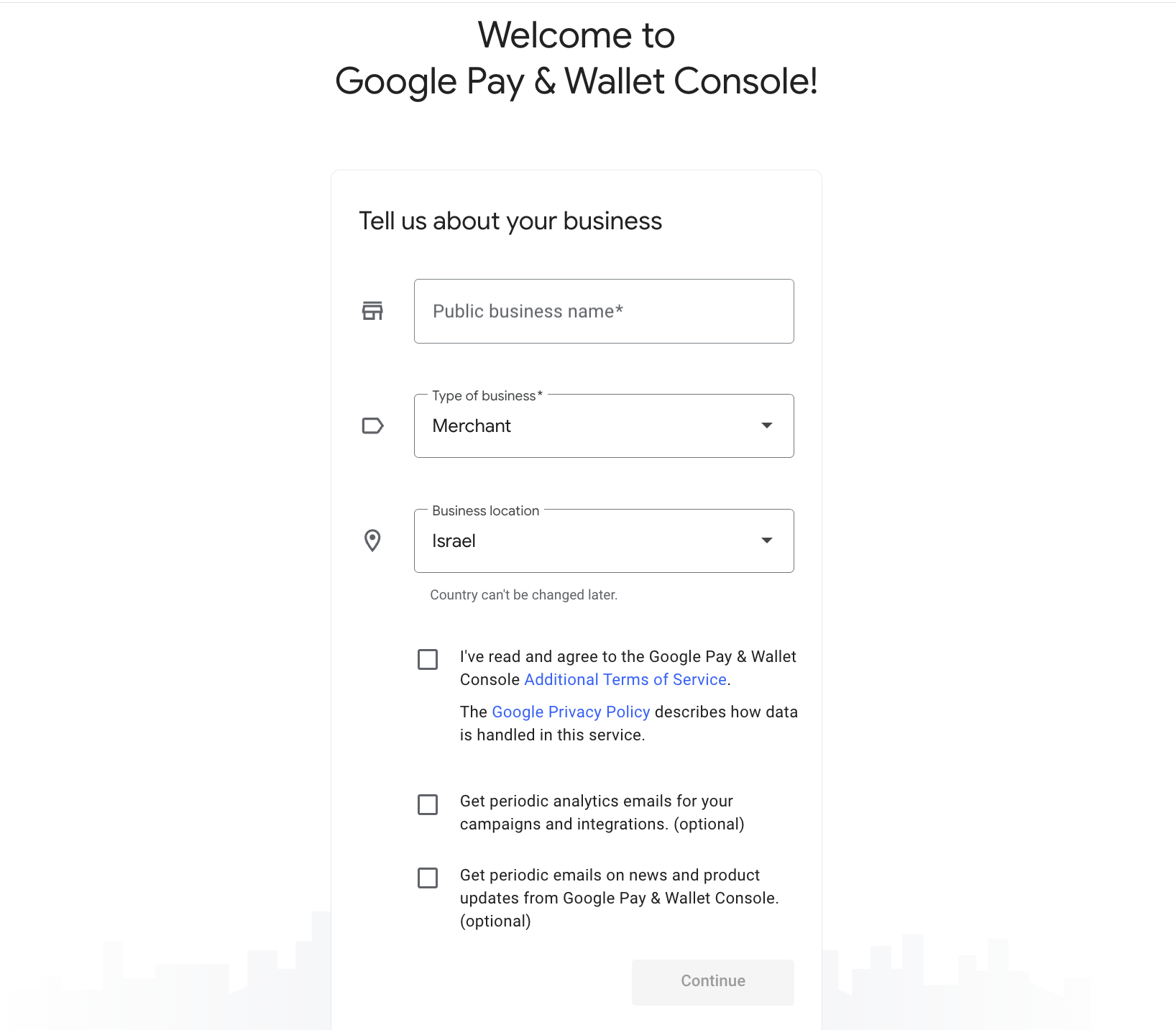
<span class="u-richtext-counter">1</span>Create a profile in the Google Pay & Wallet Console.
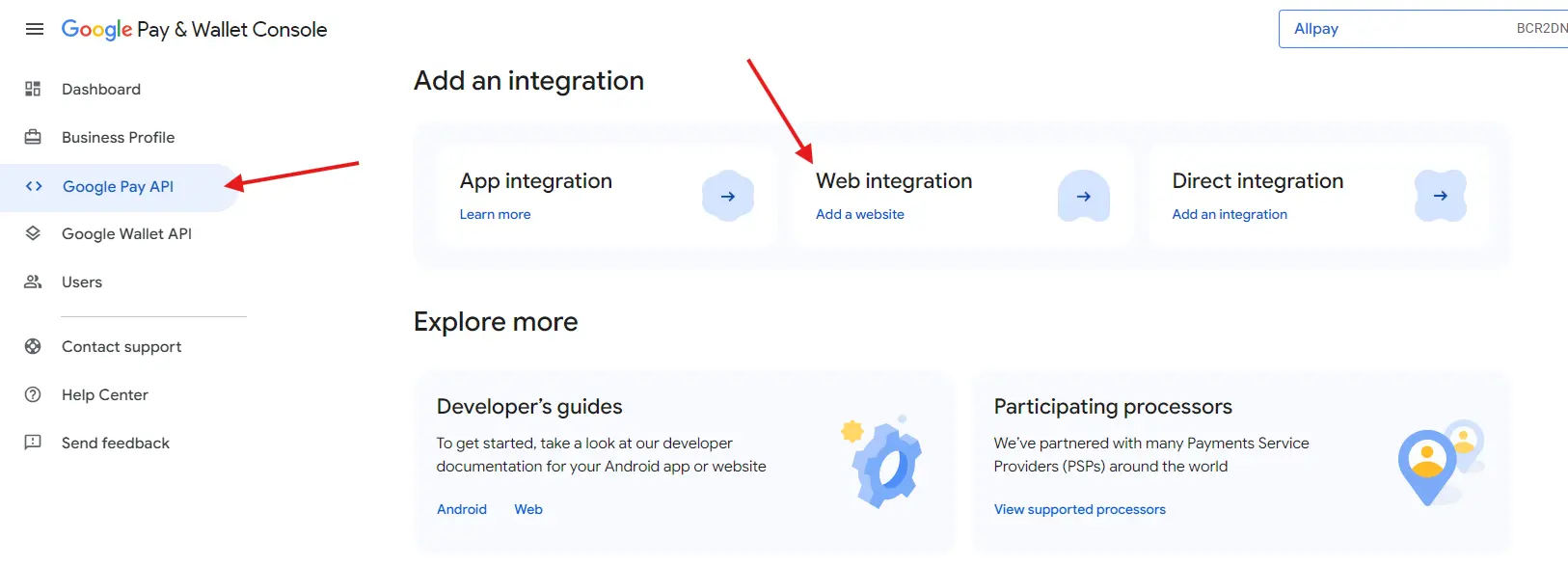
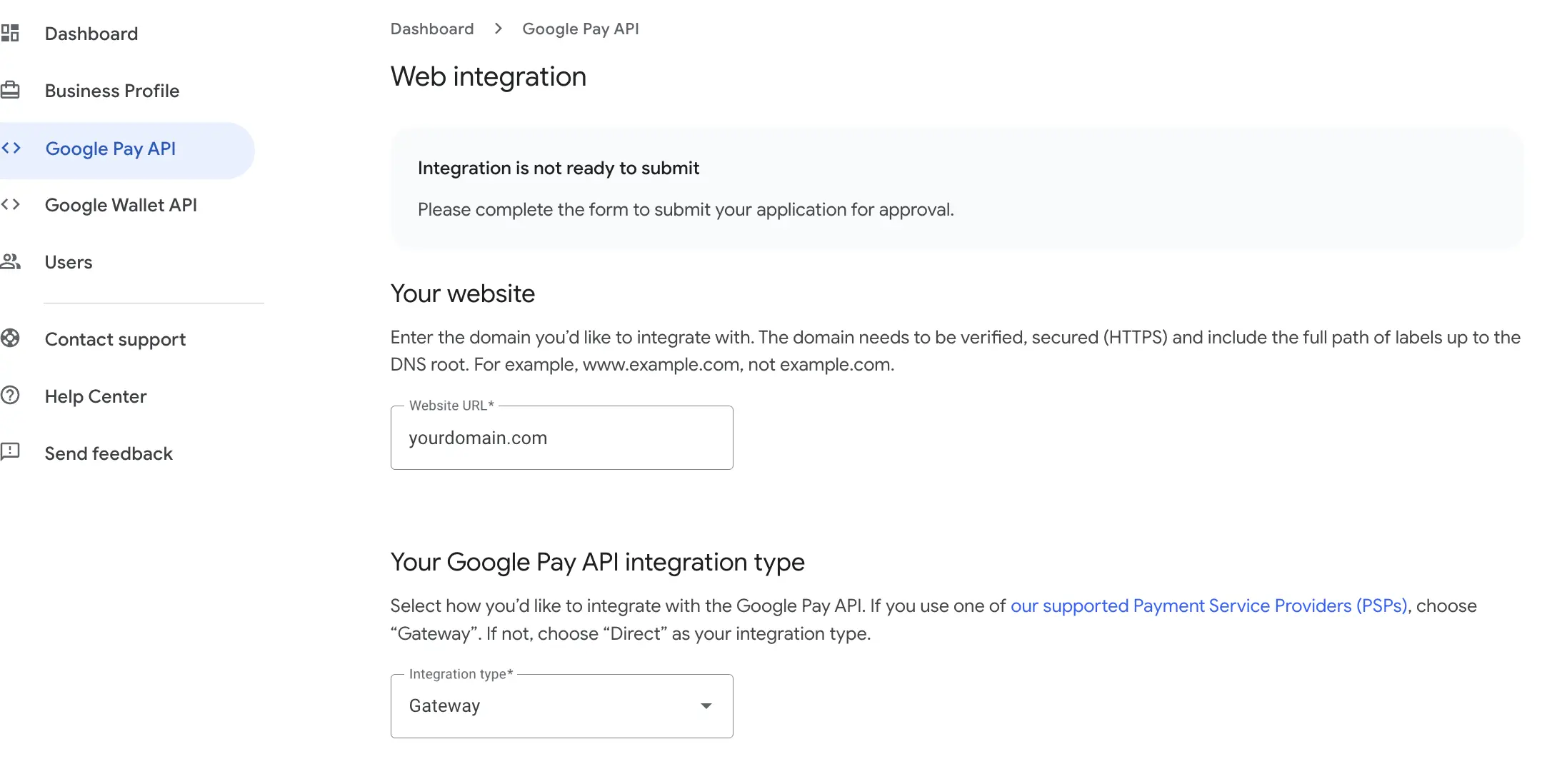
<span class="u-richtext-counter">2</span>In Google Pay API → Web integration, enter your domain and select Gateway as the integration type.
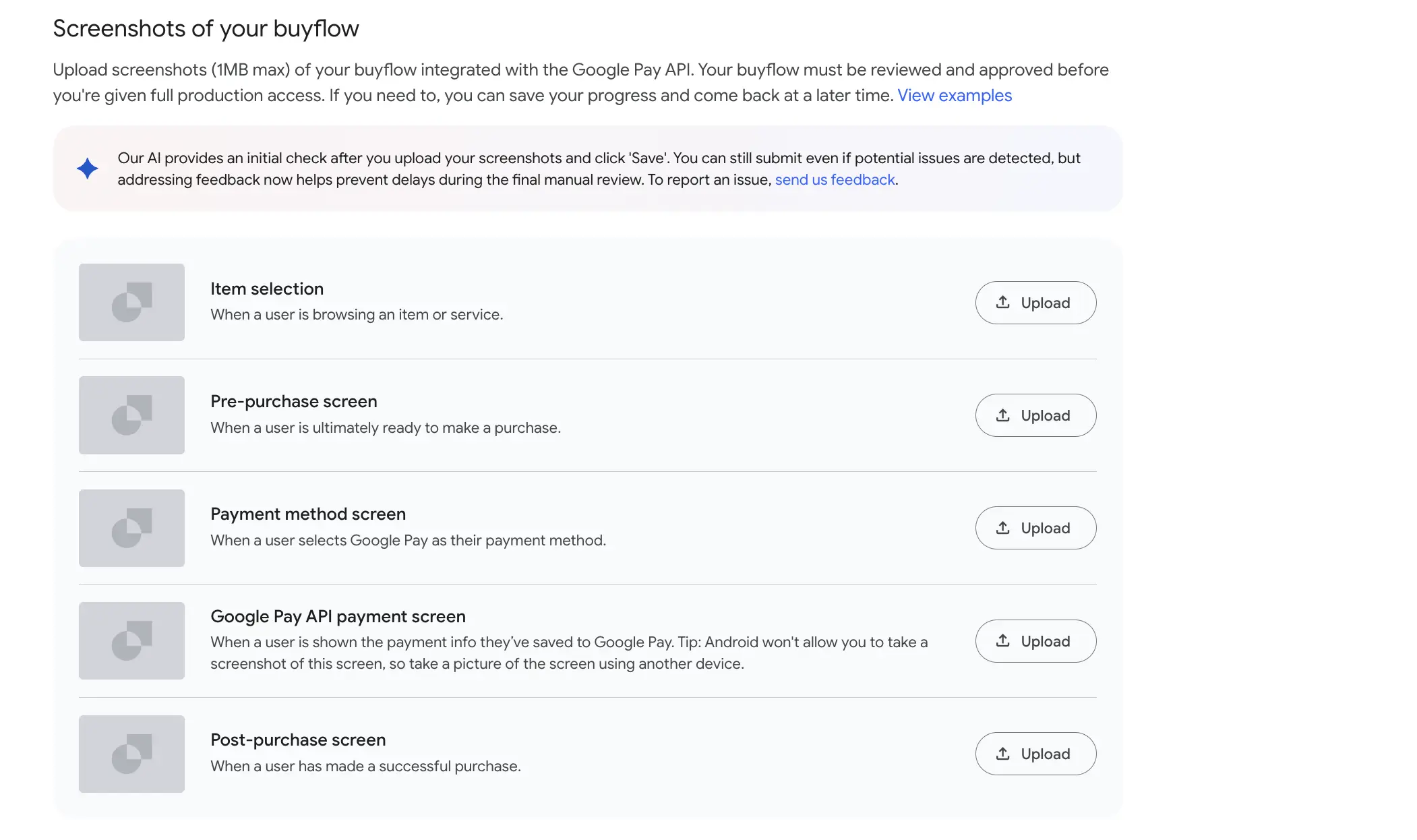
<span class="u-richtext-counter">3</span>Upload screenshots of the buyflow from your website. After activating Google Pay in Allpay’s payment modules, the Google Pay button will appear but will not work yet. This will allow you to take screenshots of the Item selection, Pre-purchase screen, and Payment method screen.
For the Google Pay API payment screen, upload a screenshot of the error that appears when you click the button. For the Post-purchase screen, upload a screenshot of your successful payment page, even if it does not mention Google Pay.
<span class="u-richtext-counter">4</span>Submit your application and wait for Google’s approval. The review may take several business days.
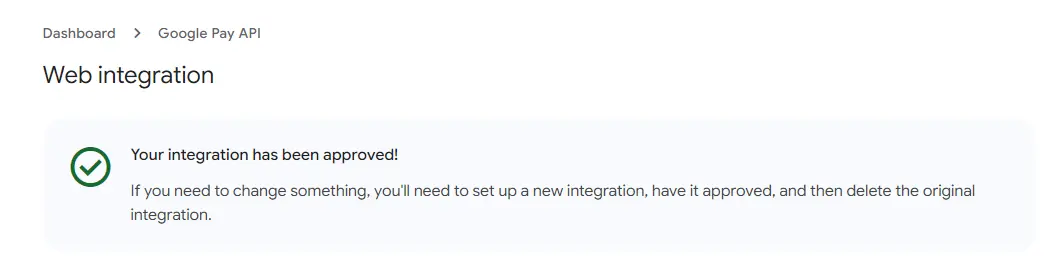
<span class="u-richtext-counter">5</span>Copy your Google Merchant ID and enter it in the Hosted Fields settings in your Allpay account. It may take several days for the ID to be configured in the payment system, after which Google Pay payments will start working.
Your website may not pass Google’s review if it does not comply with the Google Pay and Wallet API's Acceptable Use Policy or the Google’s Terms of Service.
If you represent a nonprofit organization (amuta) follow Google’s instructions.
Embedding in a mobile app (WebView)
If you embed the payment page in a mobile app using a WebView (android.webkit.WebView or WKWebView), some payment methods may not work correctly. For example, Bit or 3D Secure verification may redirect the user to a payment or banking app using special links such as <span class="u-richtext-element">intent://</span>
Unlike a standard browser, WebView does not always handle these redirects automatically. As a result, the external app may not open, preventing the user from completing the payment.
We recommend opening the payment page using a system browser component:
- Chrome Custom Tabs on Android;
- SFSafariViewController on iOS.
These components behave similarly to a standard mobile browser and provide better support for redirects to payment and banking apps.
If you need to use WebView, handle navigation within the mobile app:
- open regular <span class="u-richtext-element">http://</span> and <span class="u-richtext-element">https://</span> links inside the WebView;
- pass links that use other schemes to the operating system so it can open the appropriate app;
- if the required app is not installed, use the provided fallback link to open the browser, App Store, or Google Play.
This limitation is related to how WebView handles external links, not to Hosted Fields itself.

FAQ
Can Allpay be integrated into a website created with AI?
Yes. Just as you used AI to build your website, you can ask AI to integrate payments via Allpay. See the recommendations and example prompts.
Do you have webhooks?
Yes, Allpay can send a webhook for a successful payment. Learn more.
Does your API support hosted fields?
Yes. Card input fields can be embedded into your website or app, fully adapting their design. Learn more about Hosted Fields.


